Create your account
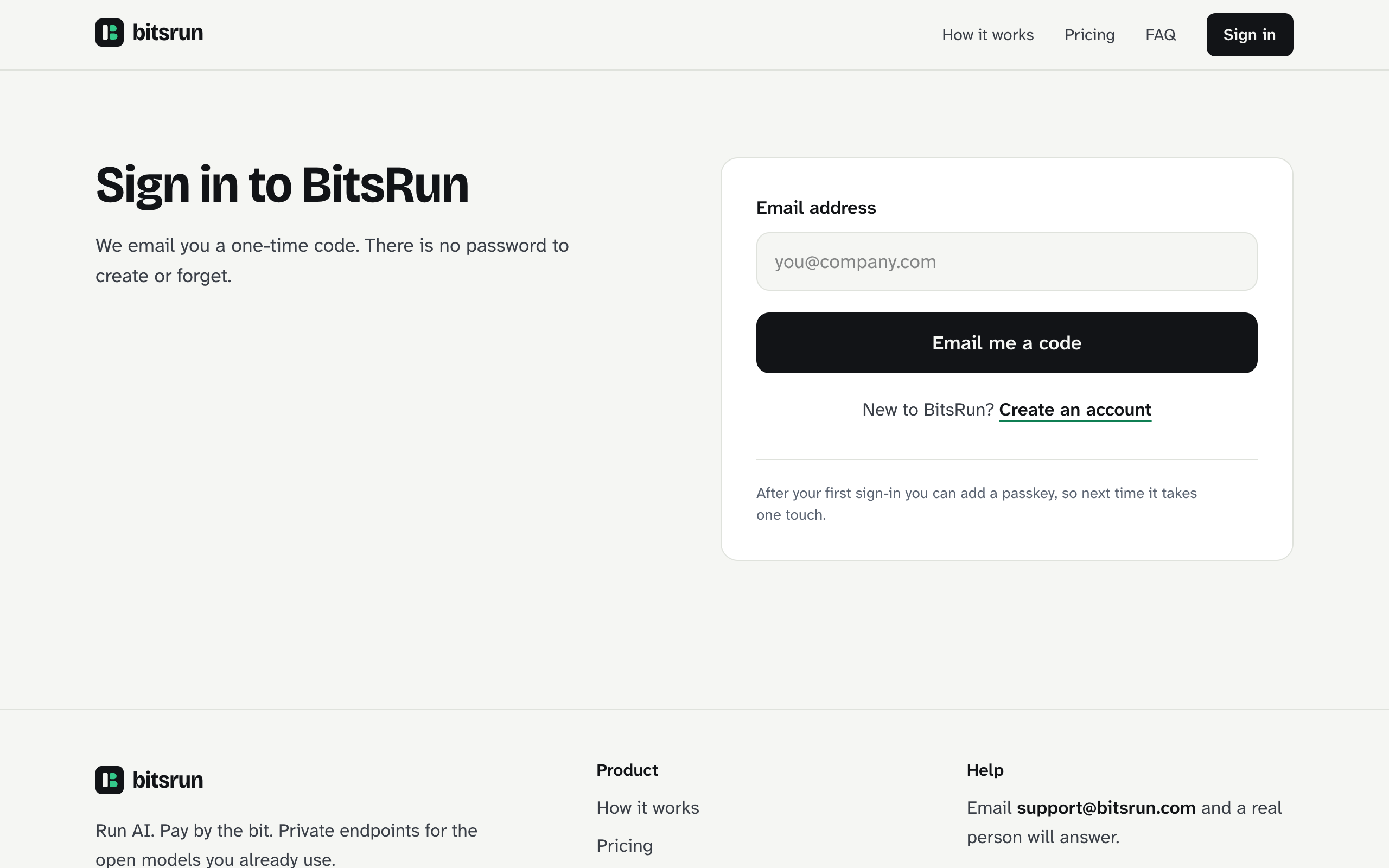
Enter your email on the sign-in page, type the 8-digit code we send you, and your account is ready; there is no password.
BitsRun has no passwords. You sign in with a one-time code we email you, or with a passkey once you add one. Only someone who can read your inbox, or holds your passkey, can get in.
Steps
- Open bitsrun.com/signin.
- Select Create an account under the button.
- Type your email address and select Email me a code.
- Open the email from
no-reply@bitsrun.comand copy the 8-digit code. - Paste the code and select Create account. You land on your dashboard.
The code works once and expires after a few minutes. If it expires, select Send a new code.
The first time you sign in, the dashboard shows Before you start. It asks for:
- your first and last name (leave the last name empty if you have only one name),
- a tick to confirm you are 18 or older,
- a tick to accept the Terms and the Acceptable Use Policy,
- an optional tick to get product news and tips by email (off unless you tick it; change it any time on the Account page).
You need to finish this before you can deploy a model, add credit or start a plan. We record which version of the terms you accepted and when.
Signing in later
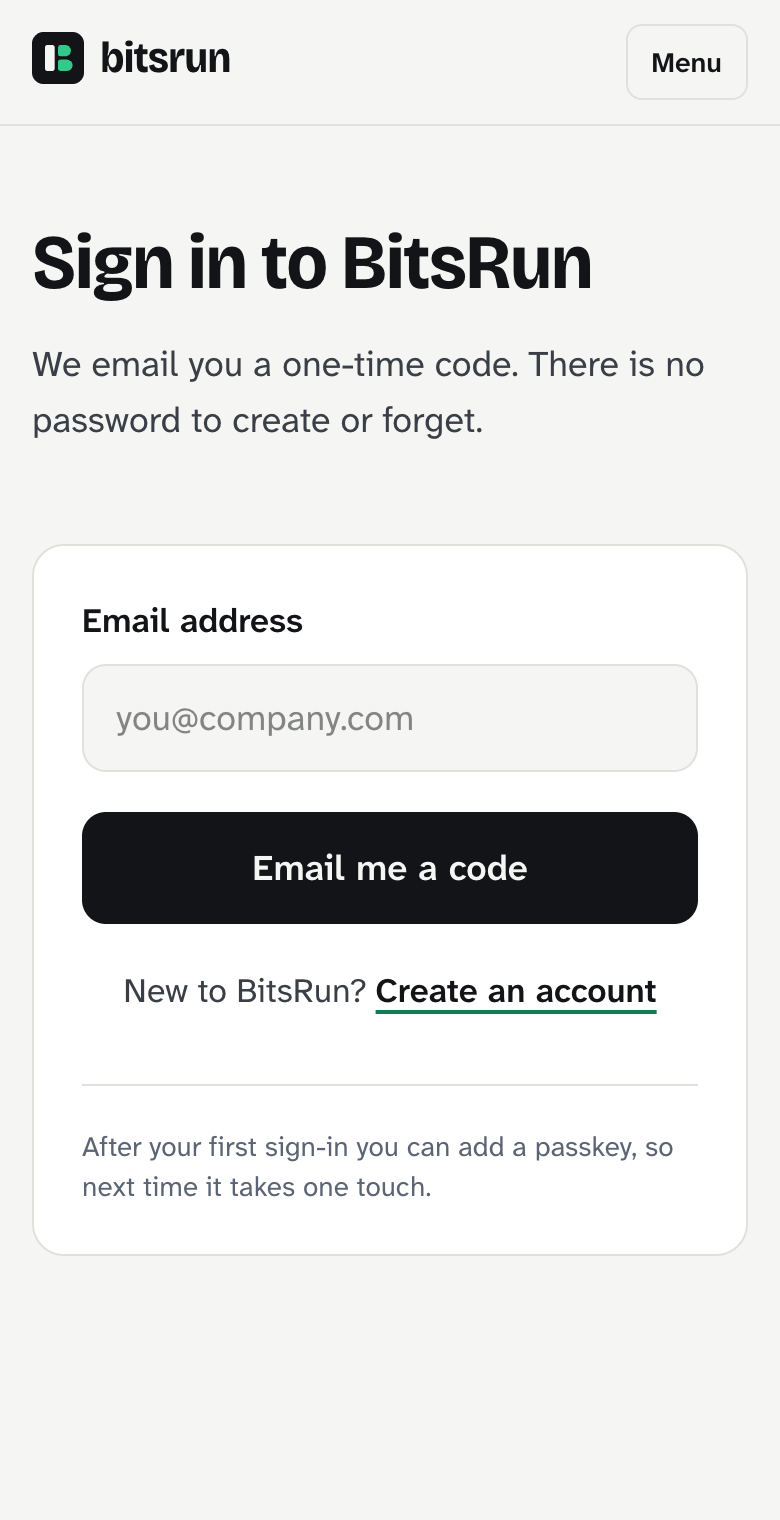
Use the same page and select Email me a code, or Sign in with a passkey if you added one. To add a passkey, open API keys in the dashboard, go to Passkeys and select Add a passkey. Next time sign-in takes one touch.
If you type an email that already has an account on the Create an account screen, nothing breaks: you simply sign in.
Your dashboard
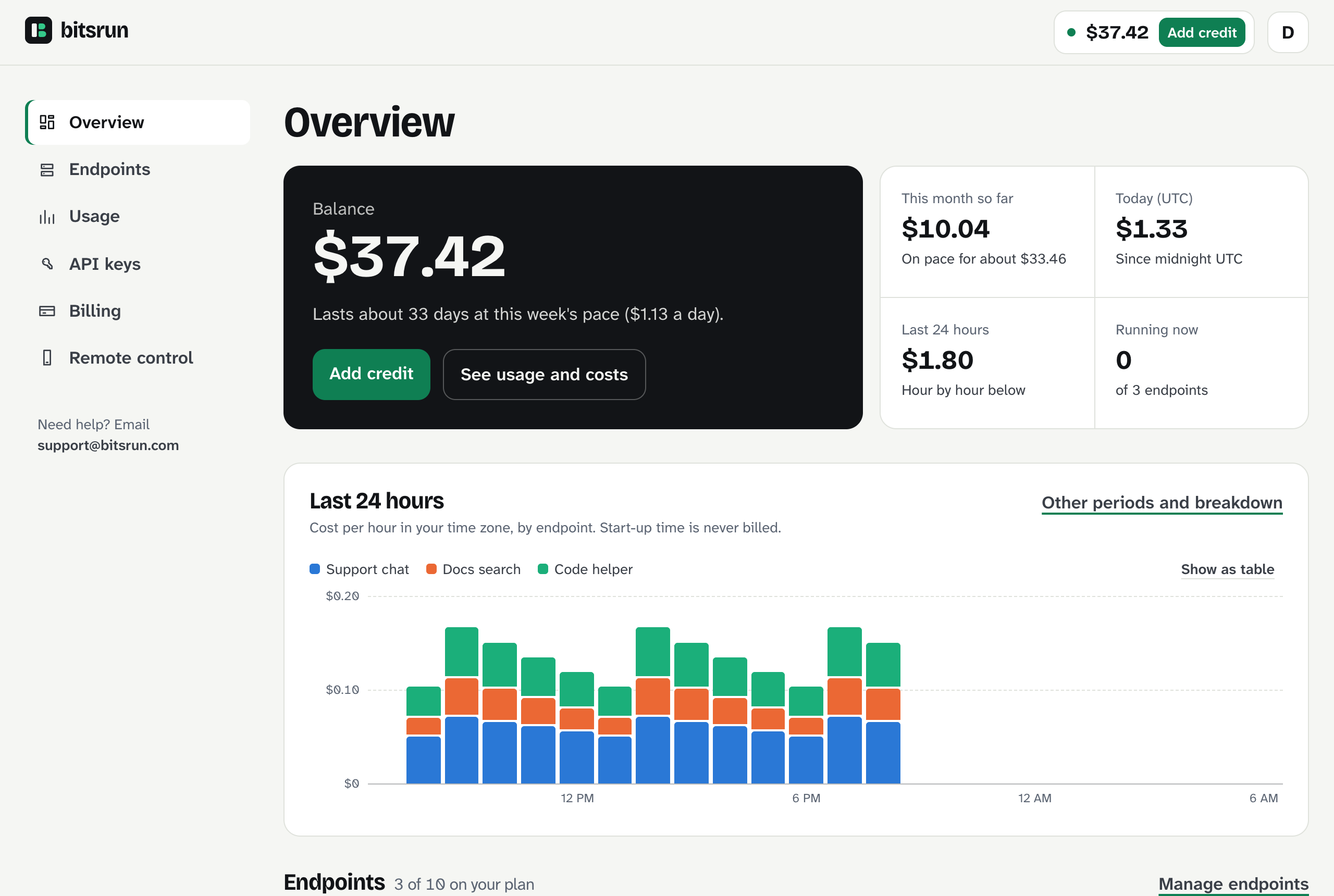
After signing in you see the Overview: your balance, what you spent today and this month, an hour-by-hour chart and your endpoints.
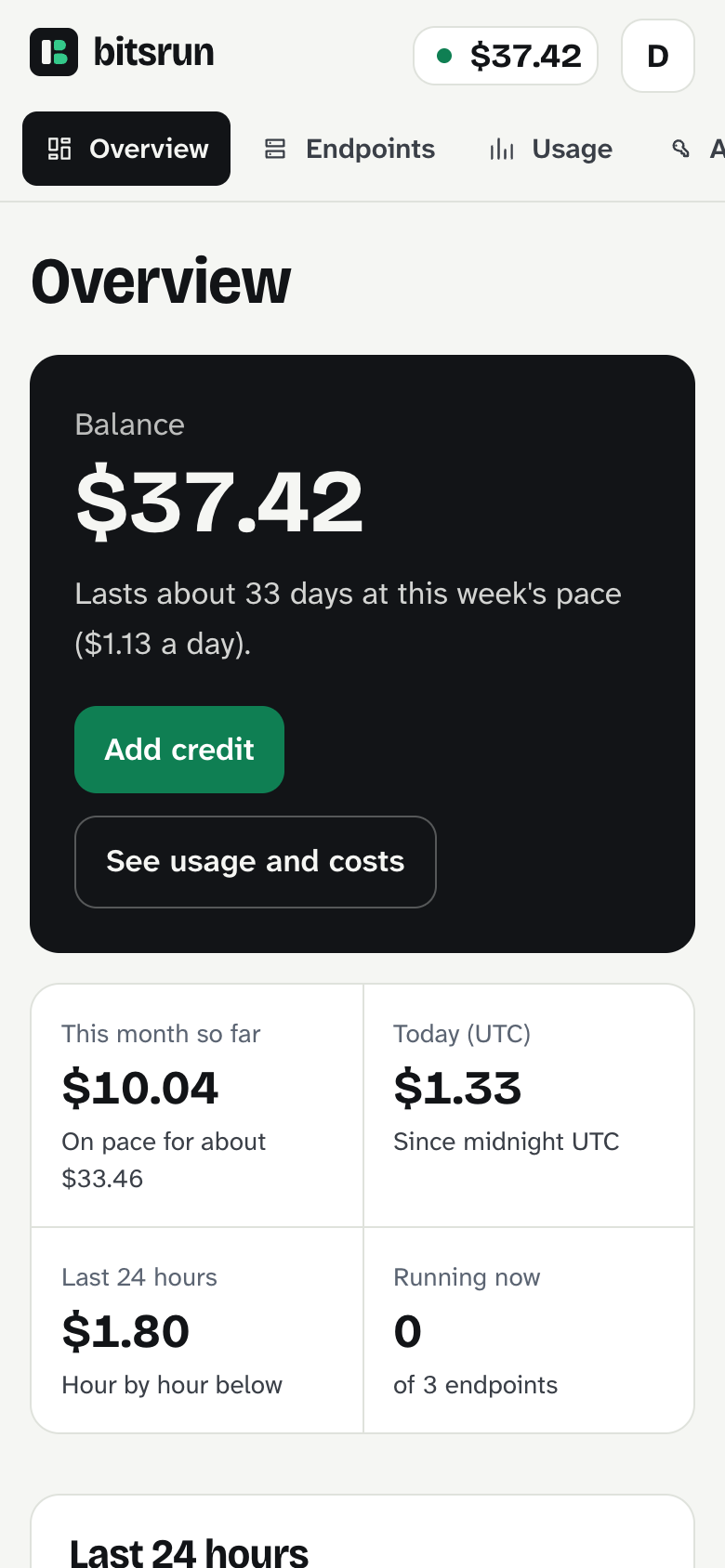
On a phone, the menu moves to the top and the cards stack.
What can go wrong
| What you see | What to do |
|---|---|
| No email arrives | Wait a minute and check spam or promotions. Then select Send a new code. |
| "That code does not match" | Copy the code from the newest email. Older codes stop working when you ask for a new one. |
| "That code has expired" | Select Send a new code. |
| "Too many attempts" | Wait one minute, then try again. |
Next step
Add credit so your endpoints can run.
Still stuck?
Email support@bitsrun.com with what you tried and any request id you saw. A real person answers.