Remote control in the browser
Open the dashboard's Remote control page in any browser signed in to your account to follow a bitsrun session, send prompts and answer approvals.
On this page
The browser works like the phone app, without installing anything. It is handy on a second computer, a tablet or a borrowed screen.
Open a session
- Turn on remote control in bitsrun with
/remote. - Sign in to the dashboard and click Remote control in the sidebar. The page lives at
/r/on the BitsRun site. - Your live sessions are listed. Open one. The first time, this browser pairs with your computer (see Paired devices).
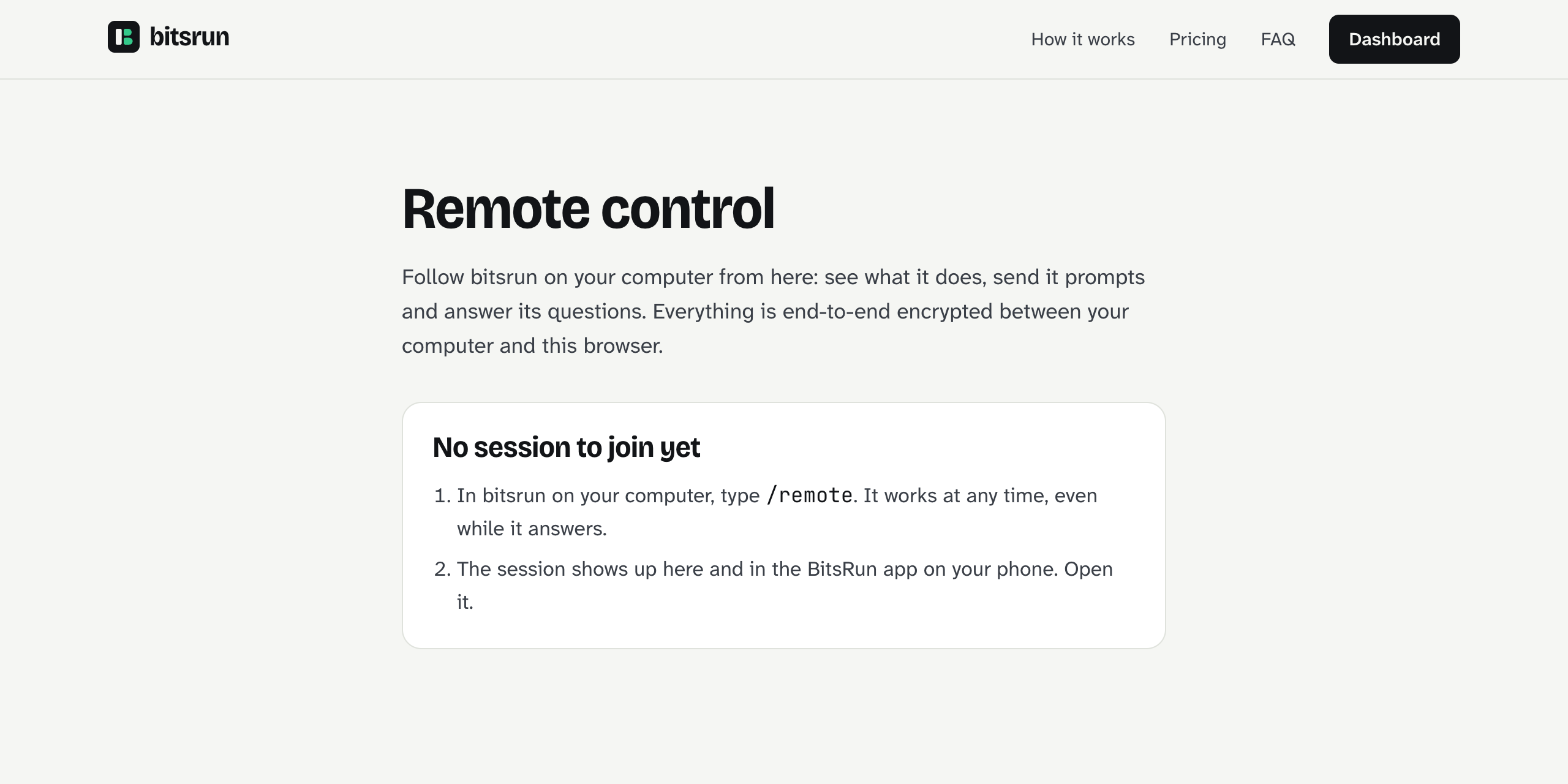
If no session is running yet, the page says "No session to join yet" and shows the two steps to start one.
You can also open the link bitsrun prints after /remote. It carries no secret: only devices signed in to the same BitsRun account can join.
Chat view and terminal view
The session opens as chat: prompts, answers and a card for each tool call. Use Show terminal to see exactly what the terminal shows, and Show chat to switch back.
Send prompts and answer questions
- Type in the box that says "Message bitsrun, or / for commands" and press Enter. While bitsrun works, the box says "Queue for after this turn..." and your prompt waits its turn.
- When bitsrun asks to make a change or run a command, the change or command is on its card. Choose Allow or Deny.
- Type
/to see the commands you can run from here.
If something goes wrong
| What you see | What to do |
|---|---|
| "Waiting for computer" or "Your computer is asleep or offline" | Wake the computer or reconnect it to the internet. The session picks up where it left off. |
| "That session has ended. Run /remote in bitsrun to start a new one." | The session closed. Type /remote in bitsrun again. |
| "Three devices are already following this session." | Close the session on another phone or tab, then try again. |
| "The terminal did not answer." | Check that bitsrun is still running, then try again. |
| "We could not connect to the session." | Check your connection and click Reconnect. |
Still stuck?
Email support@bitsrun.com with what you tried and any request id you saw. A real person answers.