Remote control
Remote control lets you follow and steer a bitsrun session on your computer from your phone or any browser, with end-to-end encryption.
On this page
You start a long task in the bitsrun coding agent on your laptop, then step away. Remote control keeps you in the loop: you see what bitsrun is doing, answer its questions, approve or deny a command, and send new prompts from the BitsRun app or the dashboard. The work keeps running on your computer the whole time.
Remote control is free. It works with any model you use in bitsrun: a BitsRun endpoint, another provider such as Anthropic, OpenAI or Google, or a model running on your own computer.
What you need
- bitsrun on your computer, signed in with
bitsrun login. See Command line. - A BitsRun account on the other device: the BitsRun app on your phone, or the dashboard in any browser.
Turn it on
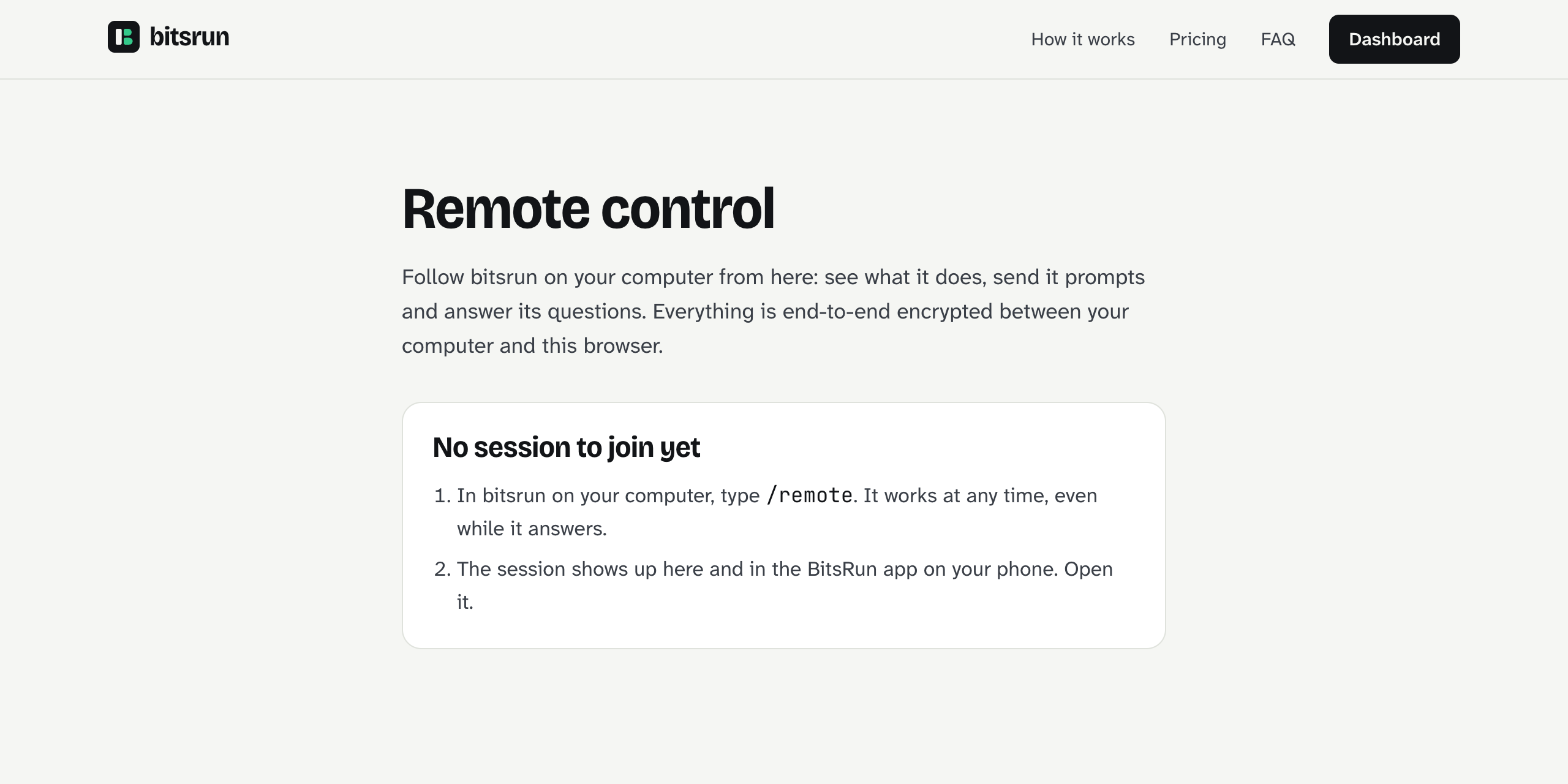
- In bitsrun, type
/remoteand press Enter. It works at any time, even while bitsrun is answering. - bitsrun prints a session link and says "Remote control started."
- On your phone, open the Remote tab. In a browser, open bitsrun.com/r/ or click Remote control in the dashboard. The live session is listed there. Open it.
You do not need to scan anything or type a code. Every device signed in to your BitsRun account sees your live sessions. You can also paste the session link into the app's Paste a session link field or open it in a browser.
/remote        turn remote control on, or show the link again
/remote off stop remote controlWhat you can do from your phone or browser
- Read along. The conversation streams in as chat: your prompts, the answers, and a card for each file read, edit or command, with its diff or output.
- Send prompts. Type or dictate a prompt. If bitsrun is busy, it waits in a queue (up to 5) and runs when the current turn ends. On the phone you can add photos and text files.
- Approve or deny. When bitsrun asks before editing a file or running a command, choose Allow or Deny. The question disappears everywhere once it is answered on any device.
- Change the mode (for example to Auto, where bitsrun works without asking) or stop the current turn, like pressing Esc.
- Run commands such as
/compact,/clearand your custom commands from the/list.
Some questions stay in the terminal: pairing a new device, rewinding, resuming an older session and carrying out a plan.
How it stays private
Your computer and your phone talk through the BitsRun relay, a server that only passes messages along. Messages are end-to-end encrypted: they are locked on one device and can only be unlocked on the other, so the relay and BitsRun never see your code, prompts, answers or file names. Both sides connect outward, so your computer opens no port to the internet.
Approvals sent from the phone are signed by that phone. The app asks for Face ID, your passcode, your fingerprint or your screen lock before it sends an approval or a mode change, so someone holding your unlocked phone cannot approve commands without you.
When the computer sleeps or the phone locks
- A session does not end when your phone locks. Open the app again and the whole conversation comes back.
- If your computer goes to sleep or loses its connection, devices show "Your computer is asleep or offline. The session picks up where it left off when it is back."
- A session ends when you quit bitsrun, type
/remote off, or when the computer has been away for 24 hours.
Limits
| What | Limit |
|---|---|
| Live remote sessions per account | Pay as you go 2, Pro 5, Business 20 |
| Devices following one session at once | 3 |
| Prompts waiting in the queue | 5 |
If a fourth device tries to join, it sees "Three devices are already following this session. Close one, then try again."
Next steps
Still stuck?
Email support@bitsrun.com with what you tried and any request id you saw. A real person answers.